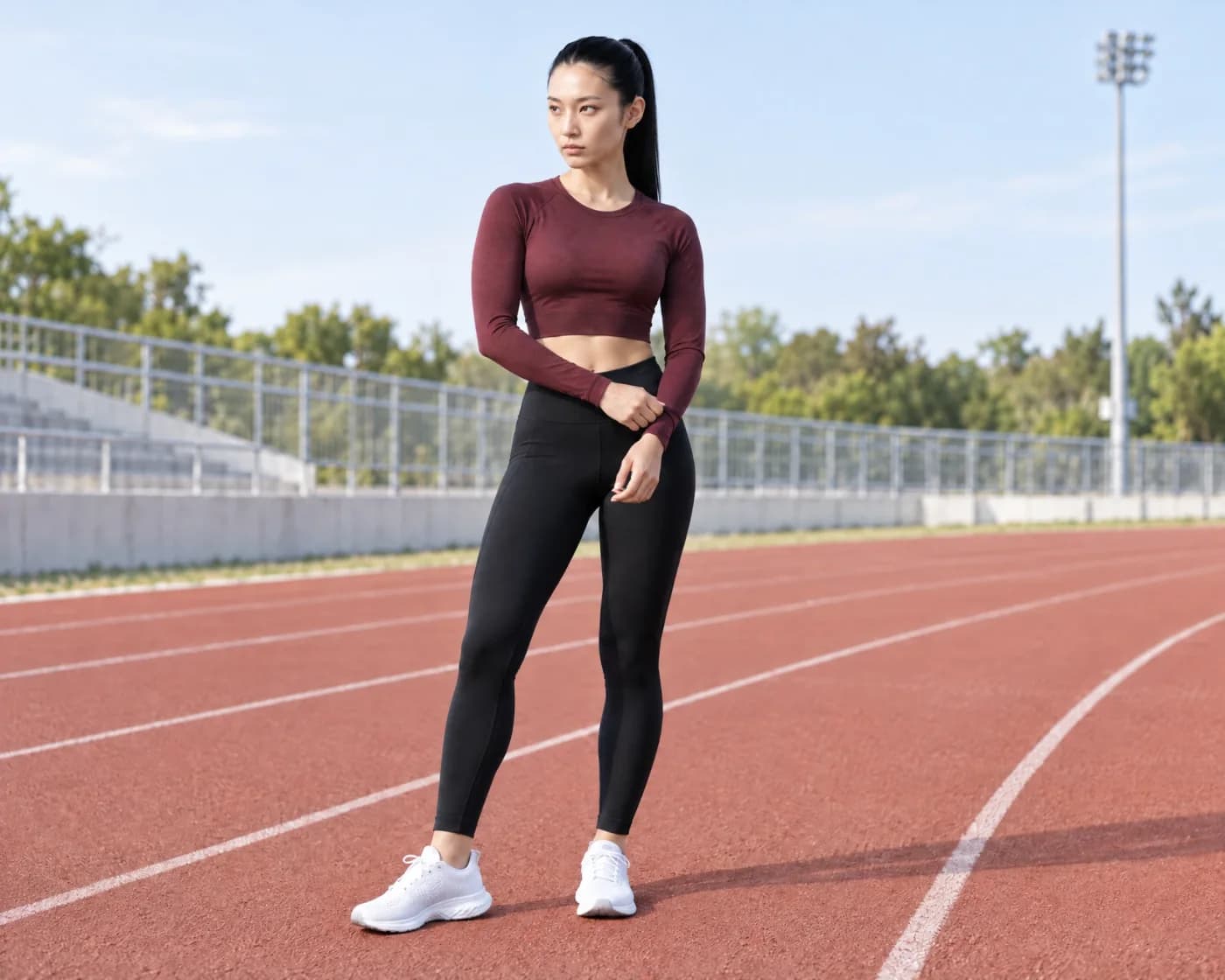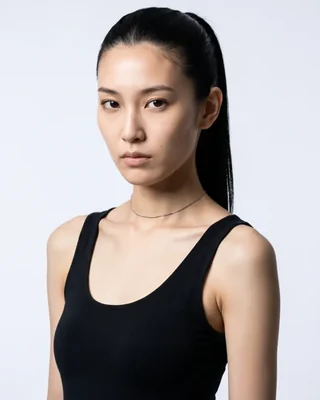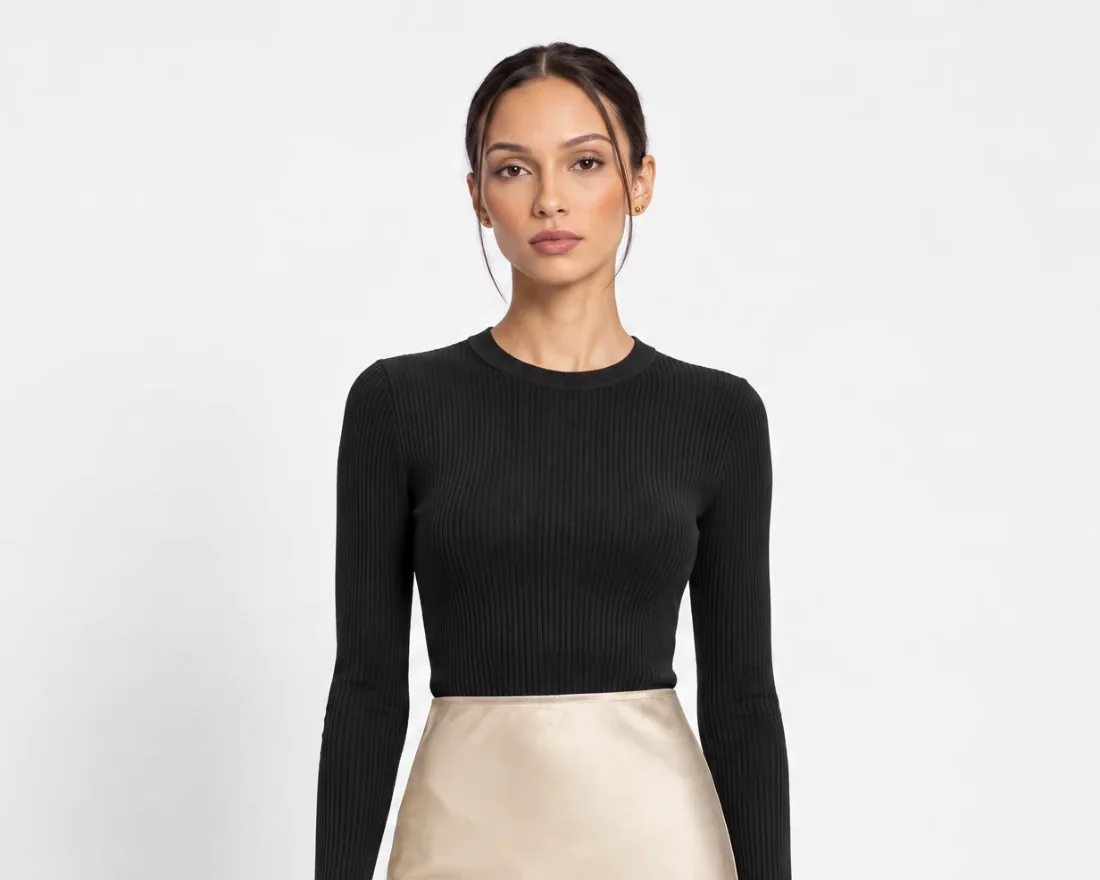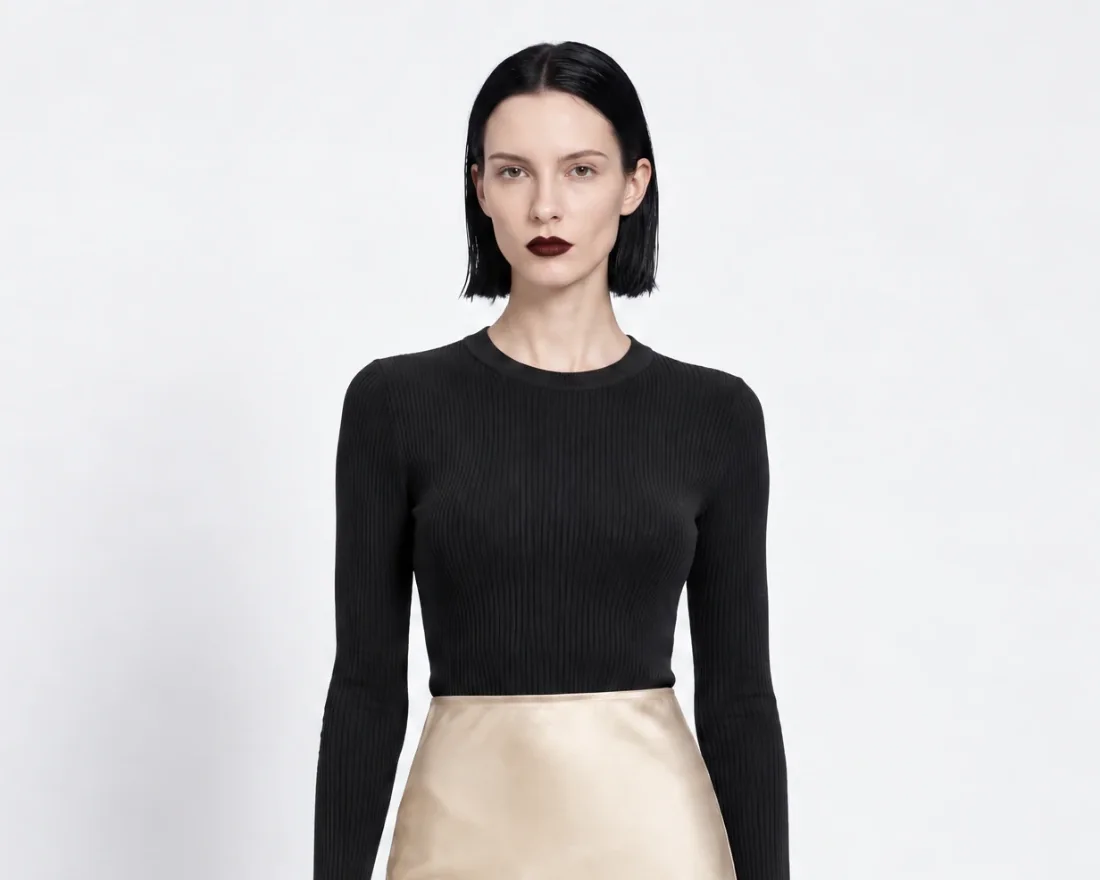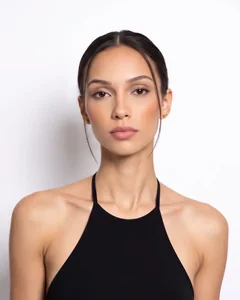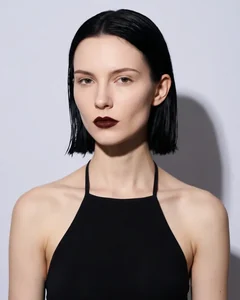


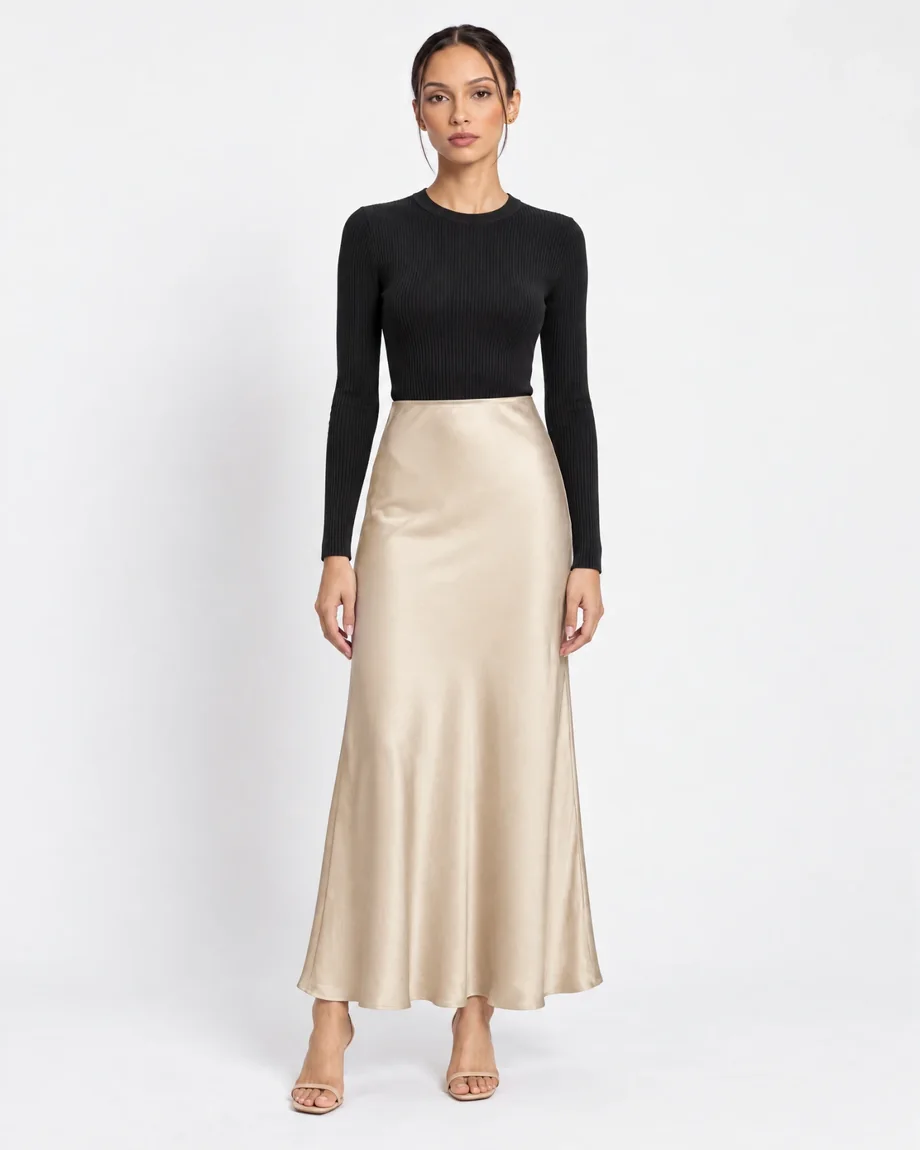
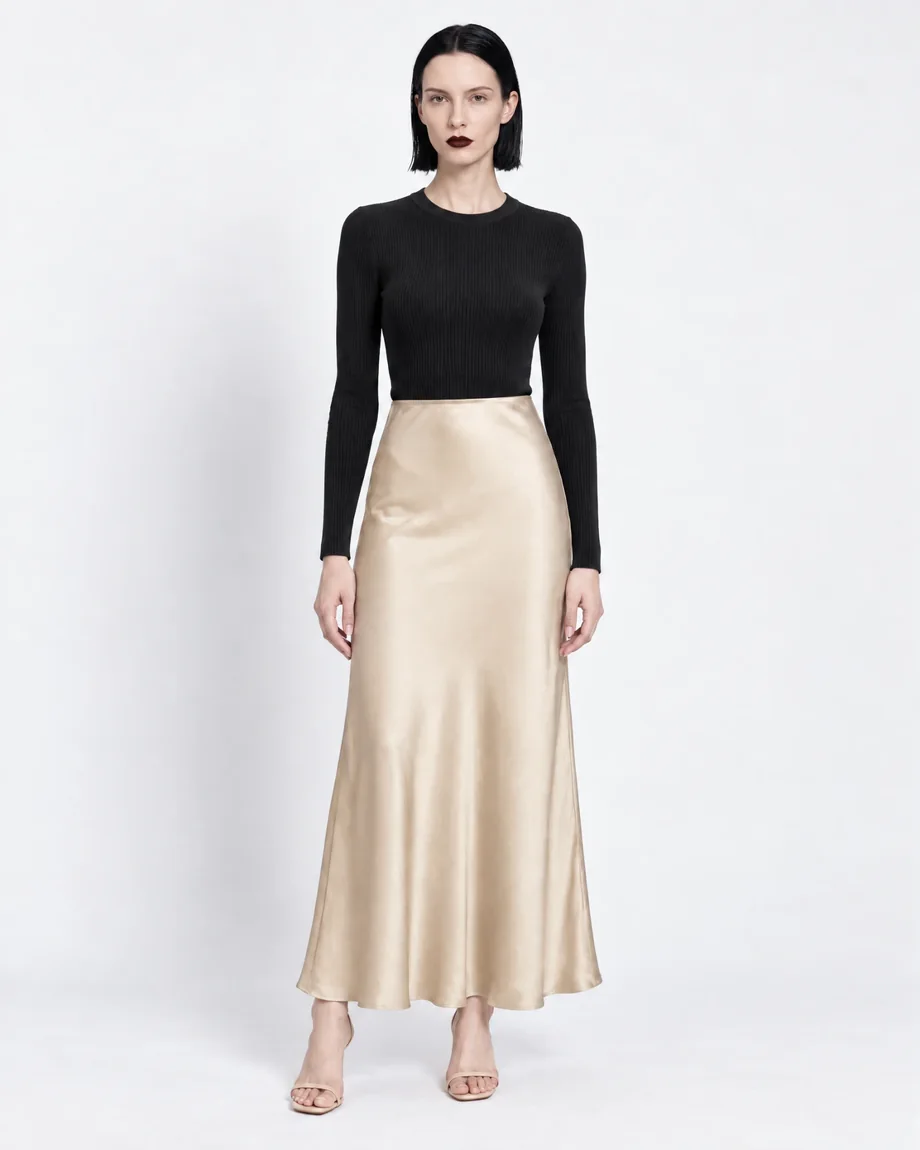
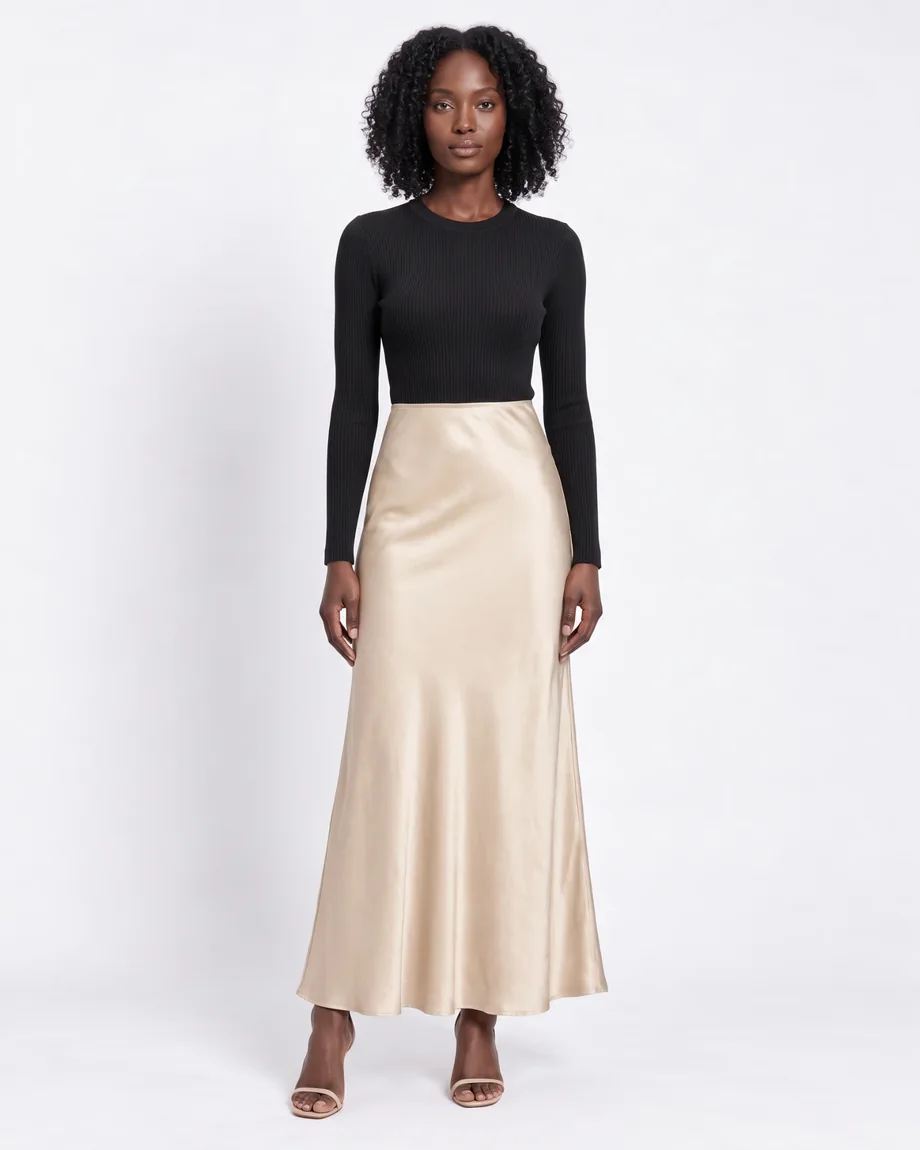
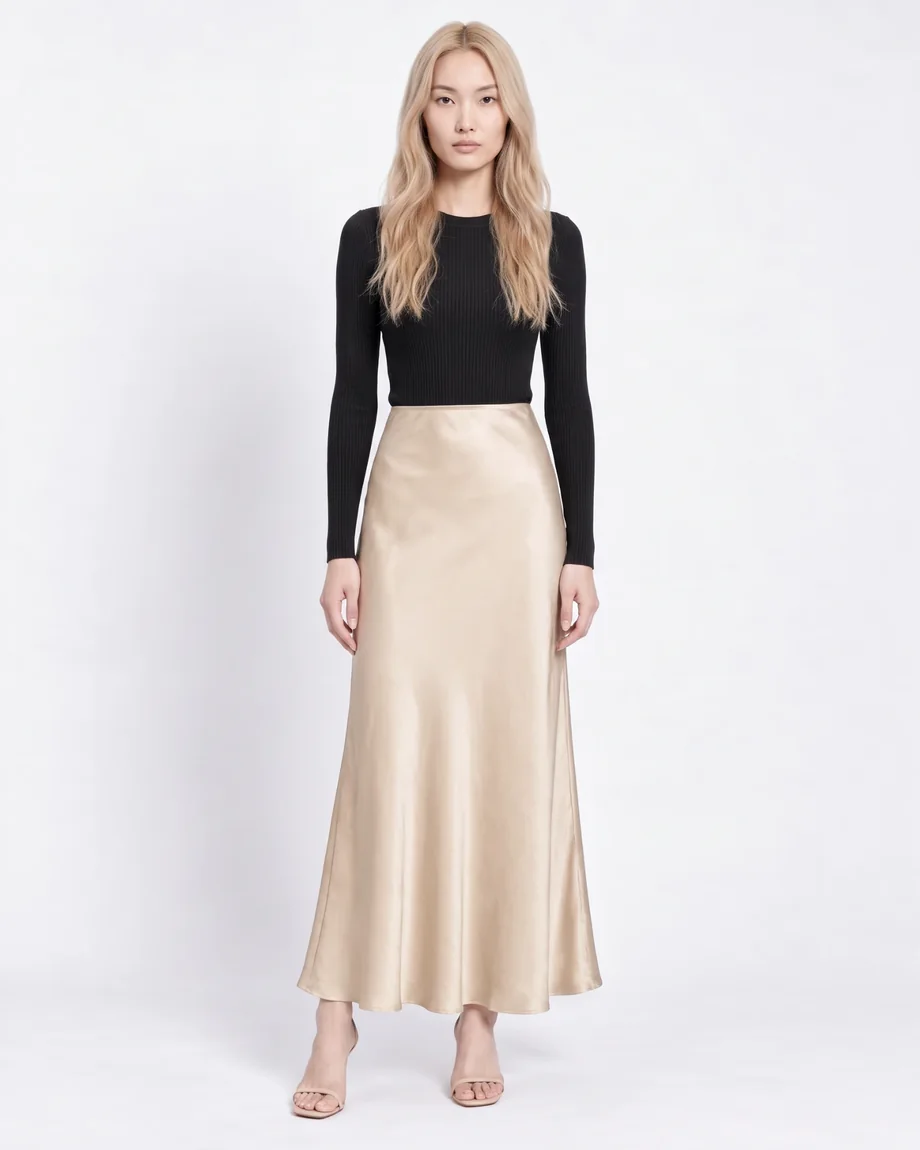
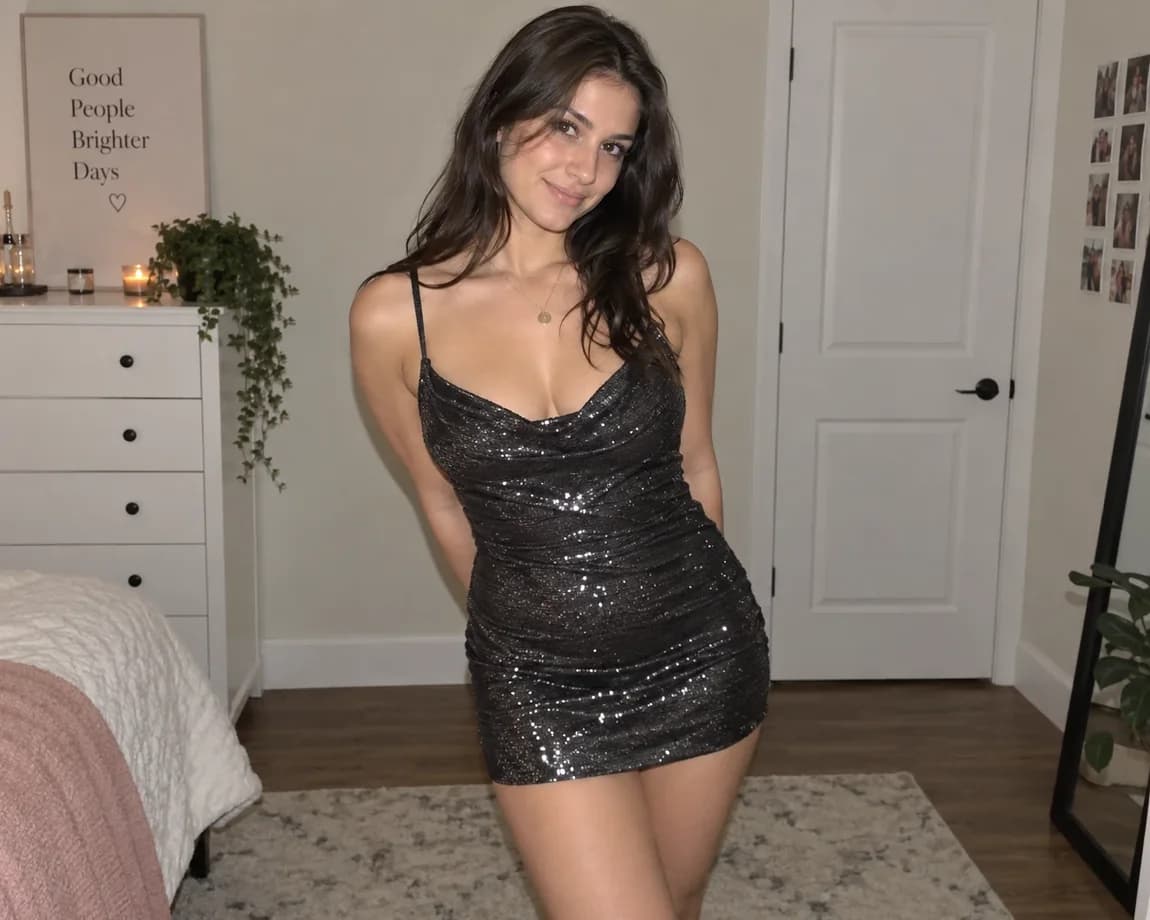
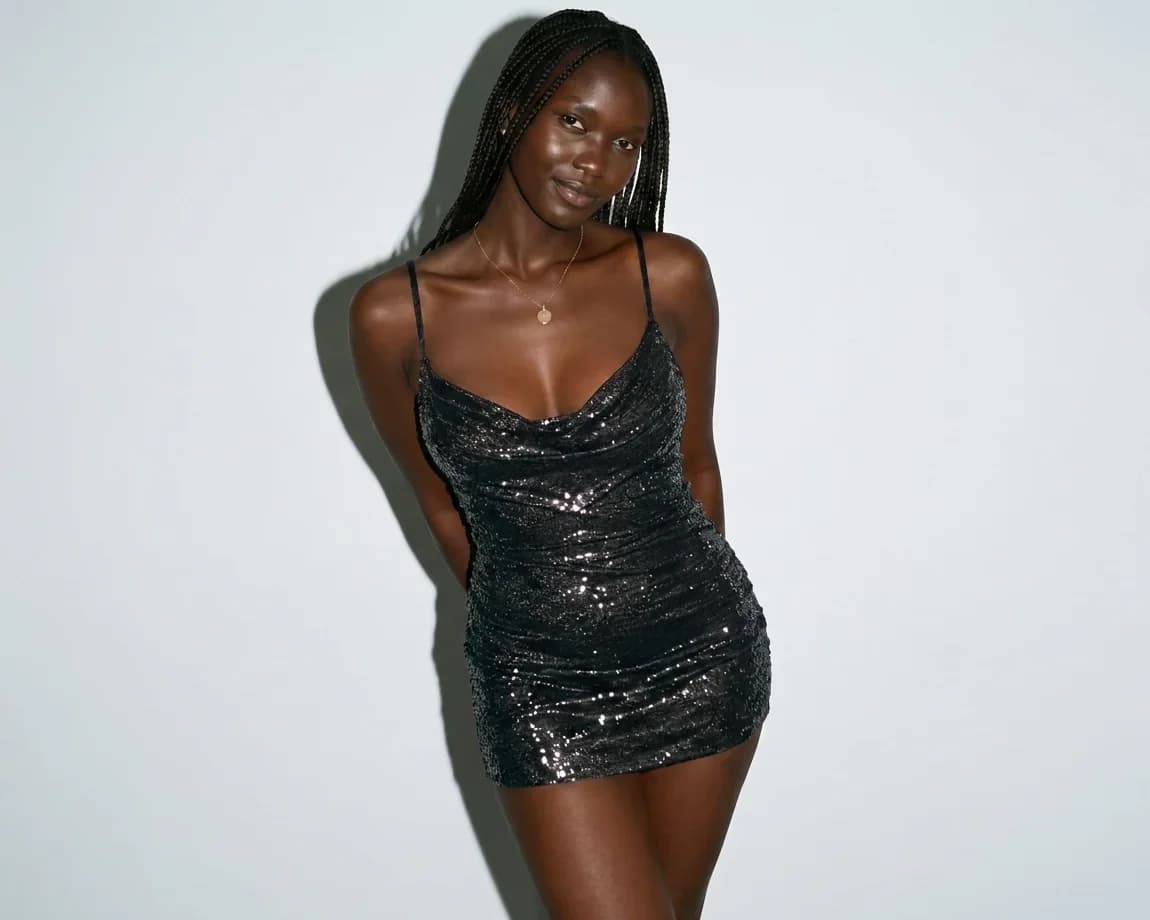
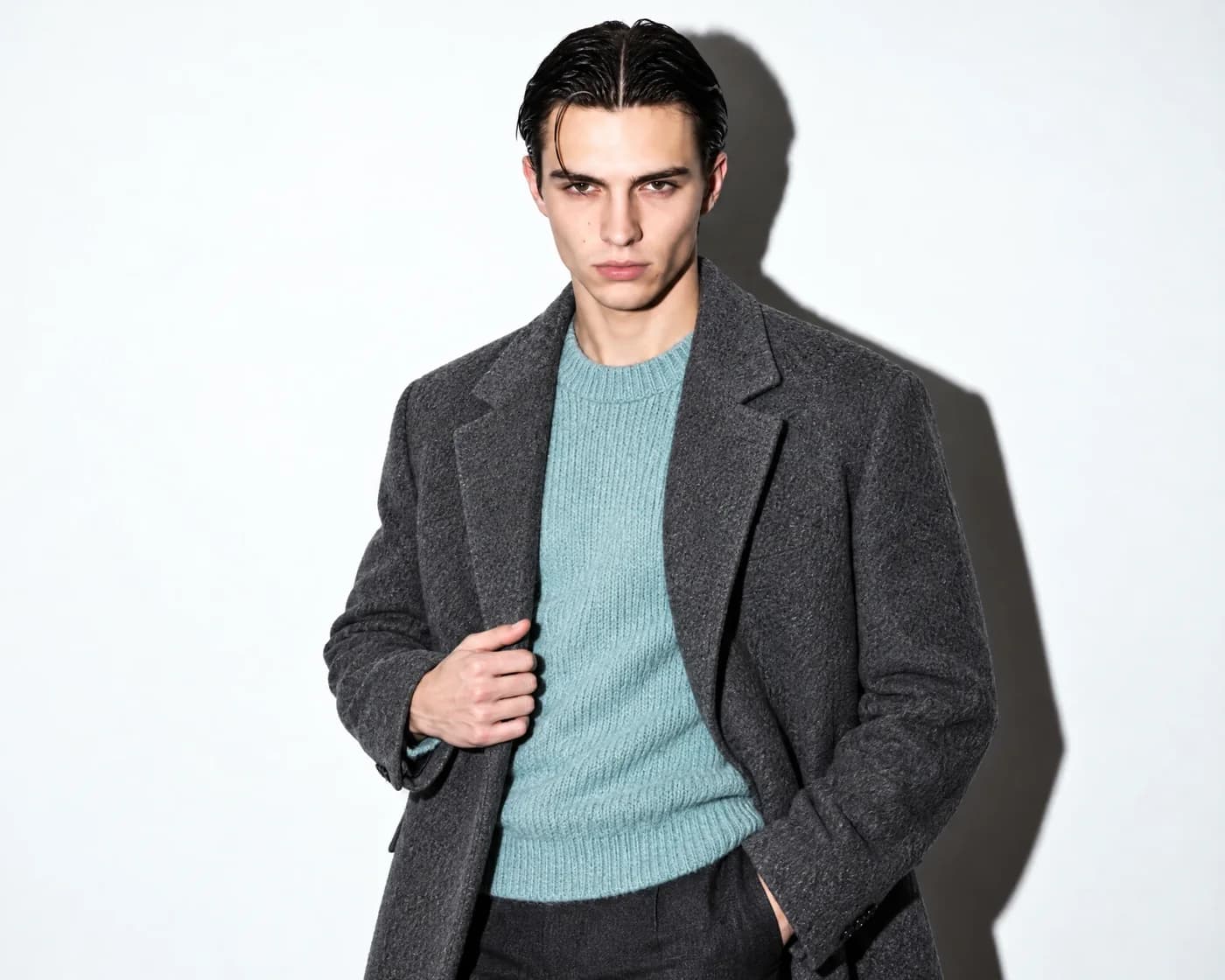
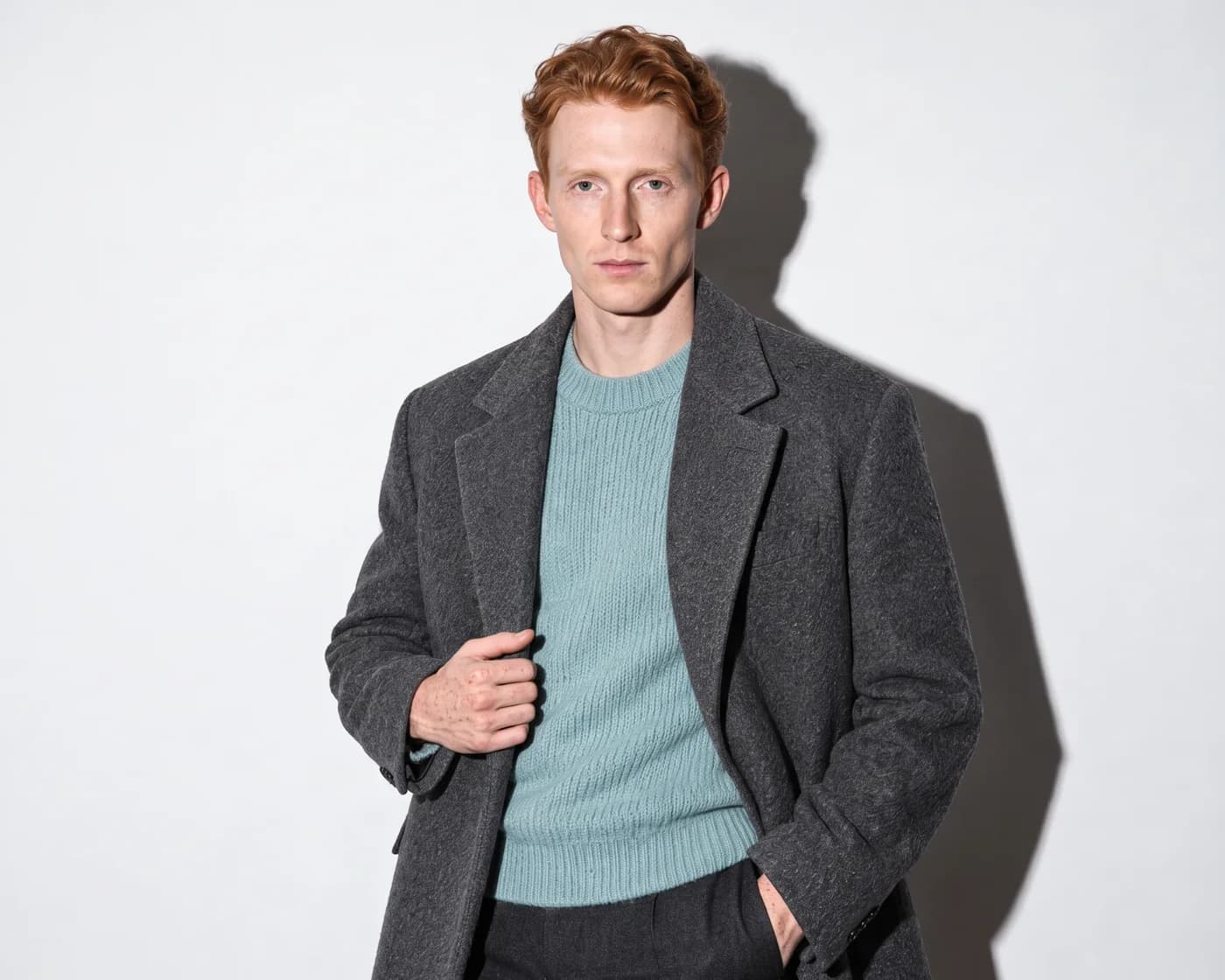
Enhance your fashion visuals with our AI fashion model changer
Swap the person while keeping the outfit, pose, lighting, and background the same. Model Swap changes the model’s appearance and preserves the product exactly as it appears.
Upload an image of any model, describe the desired look, optionally provide a face reference, then click Run. Our AI handles the rest, delivering high-quality, production-ready results without affecting the pose or product details.
No Training Required
Ready to Use – No Training Needed, Results in Seconds
Model Swap works instantly—with no setup, no training, and no long processes required. Just upload your model image, click Run, and get high-quality results in under 30 seconds.
FAQ
Frequently Asked Questions
Use Model Swap when you have an existing image of a product worn by a person or mannequin and want to replace the person while keeping the product unchanged. Model Swap changes the model's appearance (identity, skin tone, hair, face) and preserves the outfit, pose, lighting, and background exactly as they appear. If you're starting from a product photo without a person, use Product to Model instead. If you want to place a worn product onto another specific person image and pose, use Try On.
Model Swap is identity transformation. It changes the model's appearance, including identity, skin tone, hair, and face. It preserves the product exactly as it appears, along with the pose, lighting, and background. You are not changing the clothes or re-posing the subject.
Use a high-resolution source image, at least 1K, that is well-lit with minimal background clutter. The source image should have clear outfit, pose, and lighting, as these elements define what will be preserved in the swap.
Yes. You can add a text prompt to describe identity attributes such as age, hair, skin tone, facial hair, and overall style. If no text prompt is provided, the system will make a subtle identity adjustment while keeping the same age group and ethnicity. On Agency plans, you can also upload a face reference image to match a specific person across a campaign.
You can generate 1 to 4 images in one run to compare multiple identity variations at once.
The default output resolution is 1K. Pro and Agency plans support 4K resolution for higher quality results.
You can change the background using a text prompt in Model Swap, but for higher quality results, use the Background Change tool instead. It automatically adjusts lighting and shadows to match the new background.
For major identity changes, such as from light to dark skin tone, the system may miss updates on extremities like hands or feet. If this occurs, include an additional instruction in the text prompt to update the skin tone in those areas.
Yes. When using a mannequin missing arms or lower body, the system may only swap visible sections. To complete the figure, add a text prompt instruction such as 'add lower body with matching pants' or 'add arms with matching skin tone.'
Yes, all images generated through Model Swap can be used for marketing, e-commerce, and editorial content.
The Model Swap feature is available in the FASHN App. You can find it immediately through the Quick Links in the app dashboard, or in Studio → Model Swap.