How We Upgraded Our App to Support Organizations
In this article, we break down how we added support for organizations with minimal downtime. We walk through the key technical decisions, phased rollout strategies, and safeguards that allowed us to ship a major infrastructure change without disrupting existing users.
 Dinesh Surapuraju8 min read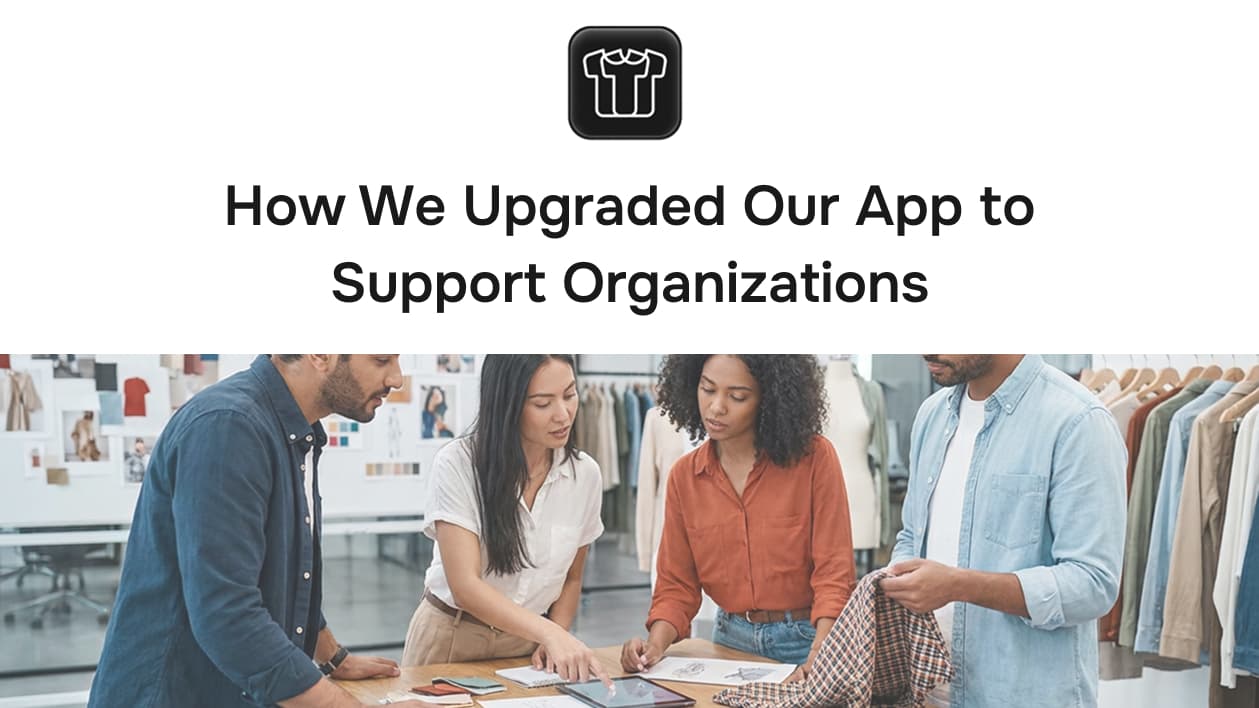
Introduction
We started getting a lot of requests from users who wanted to invite other people to their plan. It became clear that we couldn't wait any longer, so it was time for us to add support for organizations in the FASHN app.
Adding organizations meant changing the fundamental way our app worked from being built around a single user to being built around an organization. This was a big effort that required thorough and careful planning, especially because the app was already live.
Now that the work is done, we share our learnings and the story of how we successfully built and launched the Organizations feature.
Requirements
Here's a list of what we needed this new system to support in our app:
- Support for Organizations
- Organizations can have multiple users
- Users can belong to multiple organizations
- Users can switch between organizations
- Owners can invite new users to their organization
- Owners can remove members
- Users can leave an organization themselves
- Members consume the organization's credits when using the app (after switching to the relevant organization)
- Concurrency is per member, allowing multiple users within the same organization to generate simultaneously
- Data isolation to ensure users without access cannot see or use an organization's assets
Architecture
We chose to go with a single shared database, with most tables including an organization_id. This keeps the system simple and avoids the overhead of more complex isolation approaches like maintaining a separate database per organization.
We also had to decide how users would be modeled. There were two options:
- Every user belongs to an organization - no standalone users.
- Allow personal accounts - users can exist without being part of any organization.
We went with the first option because it's widely used, easier to maintain and fits our requirements without adding unnecessary complexity.
Naming
When thinking about this feature, there are many ways to name it. Should it be called organizations, teams, or workspaces?
We ultimately chose Organizations as we might need to have multiple teams or workspaces within a single organization in the future.
Database Design
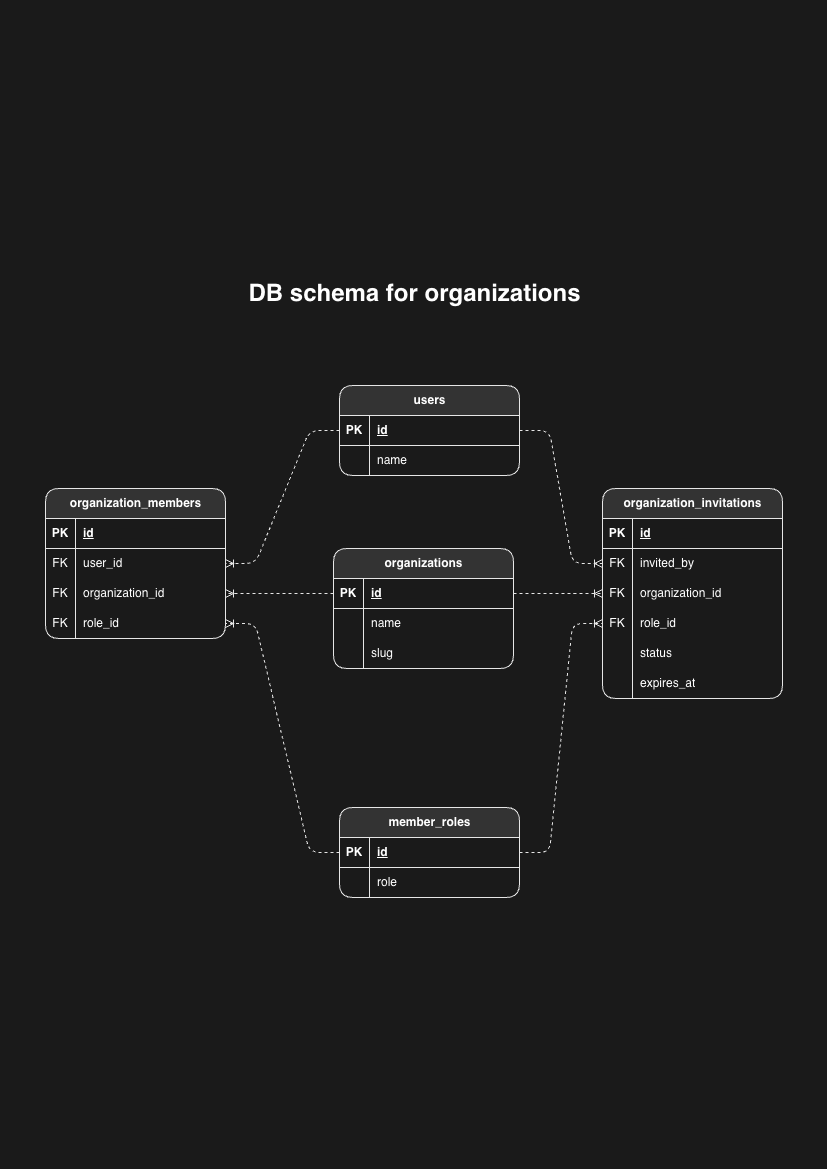
Our database design required introducing four core tables to support organizations in the system:
- organizations
- organization_members
- organization_invitations
- member_roles
We added organization_id to almost all tables to keep each organization's data isolated and to make it easy to scope queries to the correct org.
Implementation
Now that we have created all the new tables, it’s time to implement the next steps, including roles and organization-level authorization.
Roles
We are starting with two roles: Owner and Collaborator.
Instead of storing the role as a text column inside the organization_members table, we created a separate member_roles table. This gives us more flexibility as the system grows. The alternative would have been using an enum, but a dedicated table keeps things easier to extend later.
Scoping Requests to an Organization
For every request, we need to know which organization it belongs to. This ensures queries are always filtered correctly, preventing users from accessing data outside their organization. In practice, almost all database operations are scoped by organization_id.
We considered two approaches:
- Send
organization_idin the request header for every API call. - Store the user's active
organization_idin the access token.
Our API is used both by the FASHN AI app and by developers using our public API. It handles image generations, and credit usage.
With the first option, the app would need to keep track of the user's active organization (for example, in local storage) and include it in every request. This adds extra steps and is easy to get wrong.
We chose the second option. Keeping the active organization_id in the access token is simpler and ensures every request automatically comes with the correct organization context.
User session
As soon as a user logs in, we add their organization_id to the access token. Whenever they switch organizations, we update the organization_id in the token after validating that they belong to the new organization.
To retrieve the organization_id, we decode the JWT payload.
We use Auth0 for authentication in our app. So the first task was figuring out how to set the organization_id in the access token.
Adding organization_id to access token
The only way to set a custom claim in the access token with Auth0 is by using Auth0 Actions.
We created a Login / Post Login Action with the following code:
Auth0 recommends using namespaced claims for custom claims to avoid collisions Auth0 namespaced guidelines.
We added this Action to the Post Login Trigger. This custom Action will be executed on every login or when a token is refreshed.
In the app, we update the organization_id of the user by force refreshing the session, which in turn picks up the latest organization_id (in our Auth0 Action) and sets it in the new access token that will be generated.
In the actions code, we retrieve the organization_id from the user's app_metadata in Auth0, since custom data cannot be passed to Actions. First, we set the organization_id in the user's app_metadata in Auth0 using the Auth0 Management API. Then, when we force a token refresh, our custom Action reads the updated organization_id and adds it to the access token.
In the app, we access organization_id with this code:
This function verifies the token and extracts its payload. If the organization custom claim exists, the function returns it. This allows us to safely and securely determine the user’s active organization_id and use it throughout the code.
Data migration
After creating organizations and their related tables in the database, we needed to create an organization for each user and add them as the owner in the organization_members table.
Adding new tables according to the schema was straightforward. However, adding organization_id to existing tables and populating it for existing data required careful planning.
Ideally, the organization_id column would be non-nullable. Since these tables already contained data, we initially created it as a nullable column.
First, we updated the code to include organization_id for new rows. Once this change was live, we ran a data migration to populate organization_id for existing rows.
At this stage, organization_id existed in all rows, but the app was not yet using it. We ran this setup in production for a few days to ensure it was being added consistently. This gave us confidence that organization_id was reliably added to the access token, allowing us to safely proceed with the rest of the changes.
Access control
We ensure that only active members of an organization can access its assets and generate images. Membership is validated in all critical areas such as viewing the gallery, checking model history and performing image generations.
Owners can add or remove members at any time and a member's access is immediately updated to reflect these changes. When a user switches organizations, we also verify that they belong to the new organization.
Organization member invitation
Owners can invite new members to their organization using either an email address or a GitHub user ID. Since we currently support only Google or GitHub login, the email must be a Gmail account or linked to a GitHub account.
When an owner sends an invite, the user receives an email with a link to accept it. Once the user clicks the link and accepts, we verify the invitation and add them to the organization by creating an entry in the organization_members table.
Deployment
We split the project into three phases, deploying each phase to production as it was completed. This approach allowed us to gradually roll out changes, monitor system behaviour and catch any issues before moving on to the next phase.
During the initial pushes to production, we added fallbacks to the code to ensure users didn't experience failures due to organization related changes.
There were a few challenges while performing zero-downtime deployments. For example, our system originally passed the user ID to our image generation service, and the service returned the same user ID in its callback. Our webhook then used this ID to decrement credits.
Later, we changed this flow to rely on the owner ID instead. However, during the deployment, some in-progress generation requests still returned callbacks with only the old user ID. Since generations take a few seconds, any request that started just before deployment was still running when the new code went live.
Without fallbacks, these callbacks would have failed because the new code expected the owner ID to be present. The fallbacks ensured these callbacks were handled correctly and prevented any interruptions.
Even before users could see organizations in the UI, all necessary backend work had been completed. Every user already had an organization and generations used the organization's credits. The final deployment simply enabled the UI features allowing users to invite members and switch between organizations.
We also created an organization dashboard to help debug issues. It includes:
- Search by
user_id- shows the organizations a user owns and those they belong to as a member - Search by
organization_id- shows the organization's owner and its members
This dashboard made it easier to verify memberships and debug organization related behavior during and after rollout.
During the final deployment, we communicated to our users about a planned 30-minute maintenance window. This window allowed us to deploy the final changes and make the organization feature live.
We performed checks during this period to ensure everything was working as expected.
Rollback strategy
When your changes are limited to app code, rolling back is usually straightforward. You can simply deploy the previous version.
However, when database schema changes are involved, rollback requires careful planning before any production deployment.
For example, if we add a non-nullable organization_id column to the generations table, rolling back to the previous version becomes more complex. The old app code won't populate the organization_id column, but the table expects a value. In such cases, the rollback process must include a step to make the column nullable to prevent failures.
Testing
We performed extensive manual testing before deploying the changes to production.
Given that the changes affected critical code and altered the database schema, we spent significant time reviewing and verifying all functionality to ensure edge cases were covered.
Before the final deployment, we created a detailed test scenarios document and every team member went through each scenario. Our primary focus was on access control and data access, ensuring that permissions and organization specific restrictions worked correctly.
This thorough testing approach helped minimize issues and ensured a smoother rollout once the changes were deployed.
Production issues
During the course of the project, we encountered four issues in production. None were major and in most cases, we were able to roll back within a couple of minutes. All issues were resolved quickly, allowing the project to continue smoothly.
Summary
Overall, the project went smoothly. Our iterative development and deployment approach allowed us to catch issues early, fix them quickly, and ensure each change worked as intended. Making small, incremental changes made it easier to trace any problems back to specific code updates.
If you are building a SaaS product, we strongly recommend supporting teams and organizations from day one. Adding this functionality later, when you already have active users, can be challenging. It often requires complex data migrations and significant changes to your codebase to scope everything to an organization instead of an individual user.

Written by
Dinesh Surapuraju