How to Put Your Clothing on Models Using AI (Without Photoshop)
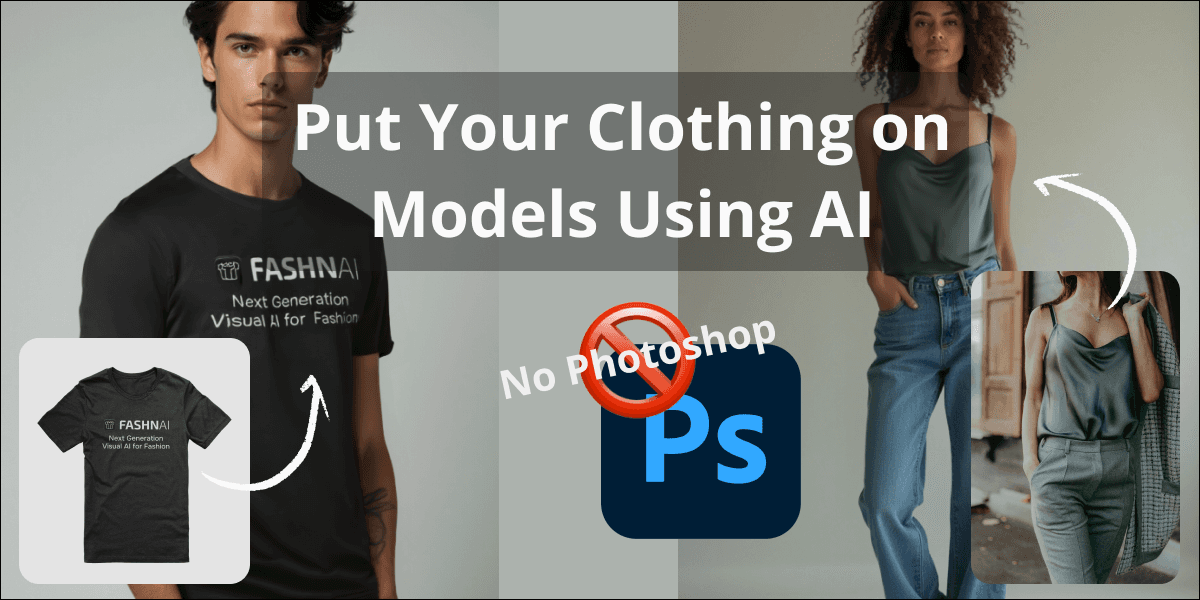
With FASHN AI, you can virtually try on any clothing on any model. No more waiting for: clothing to arrive, photographer to arrange a photoshoot, models to clear their schedules, or endless post-production edits. Instant, studio-quality visuals whenever you need them.

How to Virtually Try on Clothes with FASHN AI
FASHN AI puts a professional virtual-try-on studio in your browser. Below is the exact workflow to follow inside the FASHN web app to turn one model shot and one garment photo into a polished composite, complete with a step by step showing where each setting lives in the FASHN AI Studio.
1 · Start With a Clean Model Shot
If you're uploading your own model photo, ask yourself first: does the algorithm see the model clearly?
- Busy patterns can confuse segmentation.
- Are there people in the background?
- Full-frontals work best; avoid extreme angles that hide limbs.
If you’re generating a model: you can start with one of our example prompts and go from there, or create your own. The generation step is flexible to whatever you describe.
- Remember to mention “full body shot” or similar while generating the model.
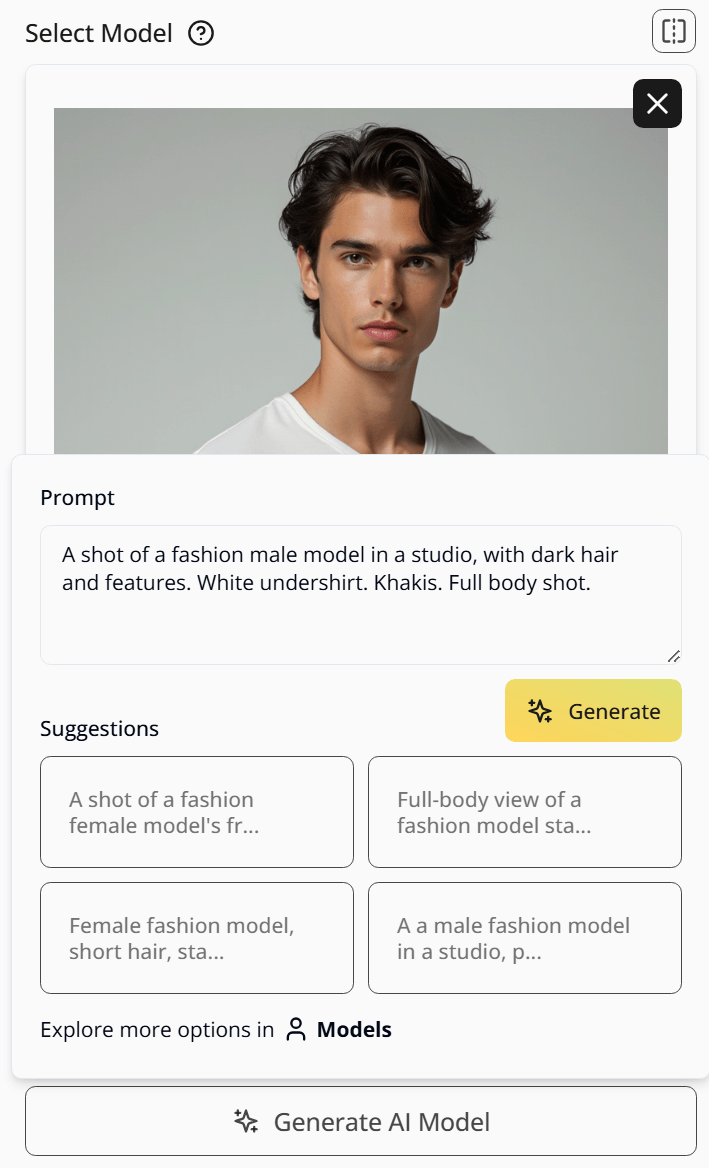
Upload (or generate) your model photo in the FASHN AI Studio
We'll use the following example for this demo:
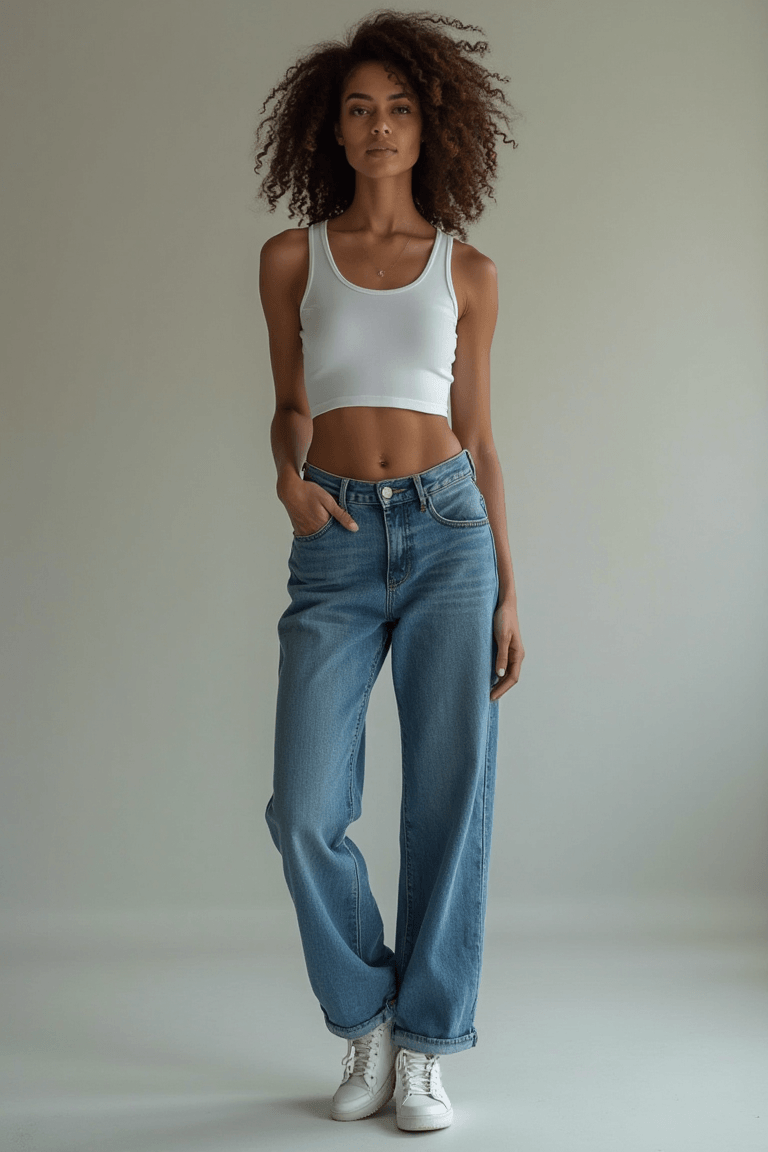
2 · Pick the Garment Image
The rule of thumb is maximum shape information, minimum clutter. A on-model reference beats a flat-lay photo. That said, you can use a flat-lay photo, and it’ll still work.
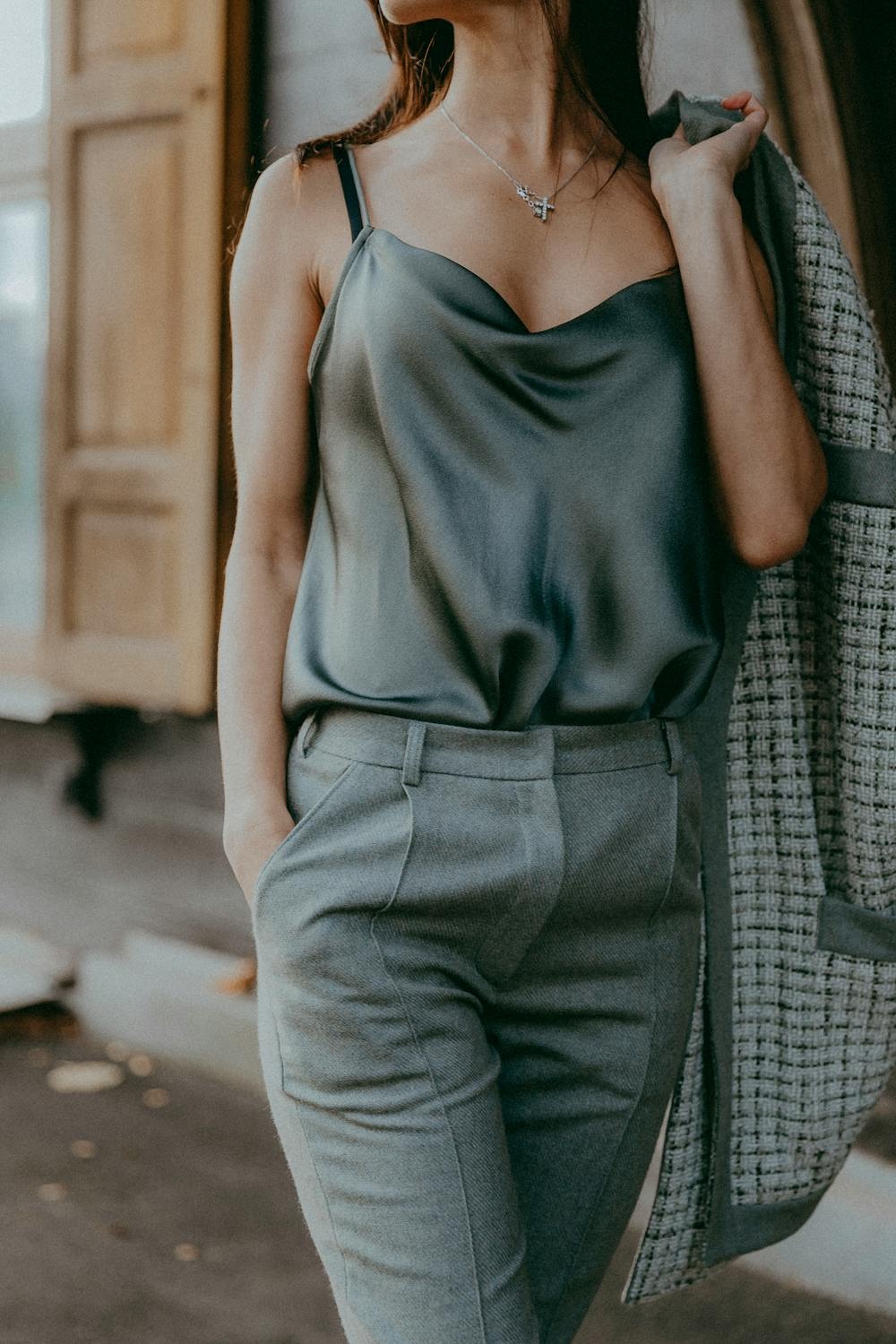
Optional: choose a garment Category (Top · Bottom · Full-body), defaults to auto.
3 · Set the Controls
FASHN abstracts away the heavy diffusion knobs (timesteps, guidance, etc.) into three intuitive knobs:
| Control | What it does |
|---|---|
| Mode (Performance · Balanced · Quality) | Internally balances speed vs. fidelity (think fewer vs. more refinement steps). |
| Number of Samples | Generates multiple variations in one run, each with different noise. |
| Seed | Re-runs with identical noise when fixed; varies results when set to Random. |
📝 If you’re a developer, you can modify these parameters through our API for your application
4 · Run & Review
Click Run and let FASHN's AI Studio cook. I always set it 4 samples and review a few before judging:
- If cloth floats or colors clip, just run it again. The seed is random, so the result will be different.
- If details feel fuzzy, switch Mode from Performance → Balanced or Quality.
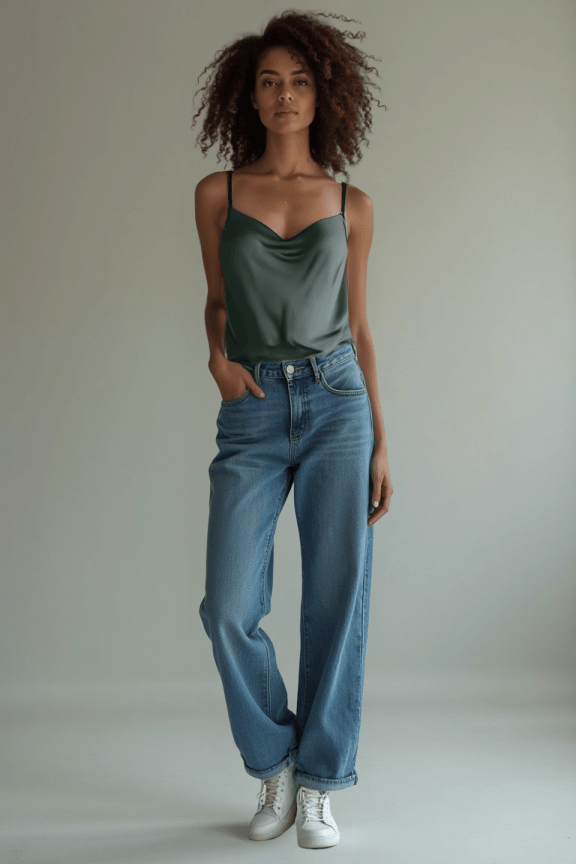
Like magic, now you have your model wearing the clothing you selected!
5 · Export the Winner
Download at the highest resolution offered. For catalog work keep the plain backdrop; for campaigns, edit or expand the background in the background editor.
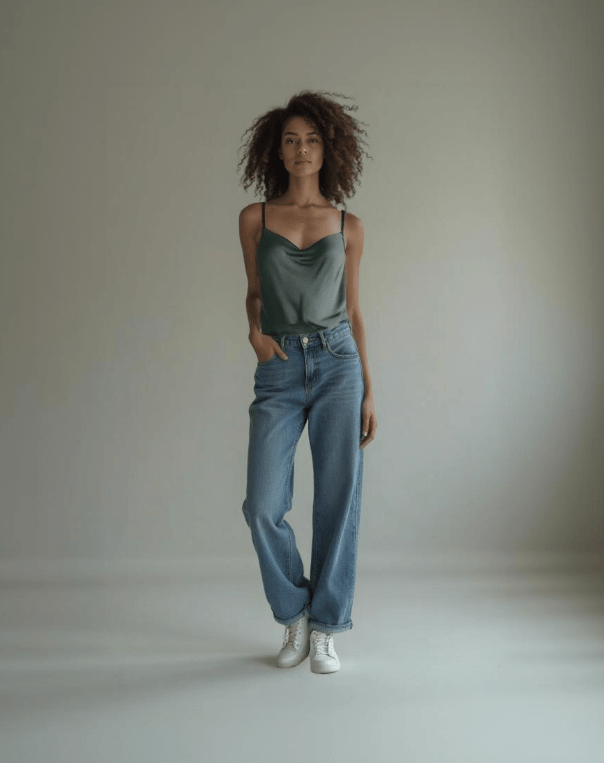
You can also turn your composite into a video with the click of a button, if you press the video icon in the top left.
Recap
Upload a clean model shot → add a clear garment image → pick Mode, Samples, Seed → run, reroll if needed → export. Stick to simple backgrounds and the Balanced preset; the AI will reward you with studio-quality looks in minutes.